
This section is relevant to:Candidate Resourcing Partners
Administration Support
Administration Support
Creating the candidate
Creating a candidate is simple and straightforward. Click on Candidates in the Main Navigation Bar.

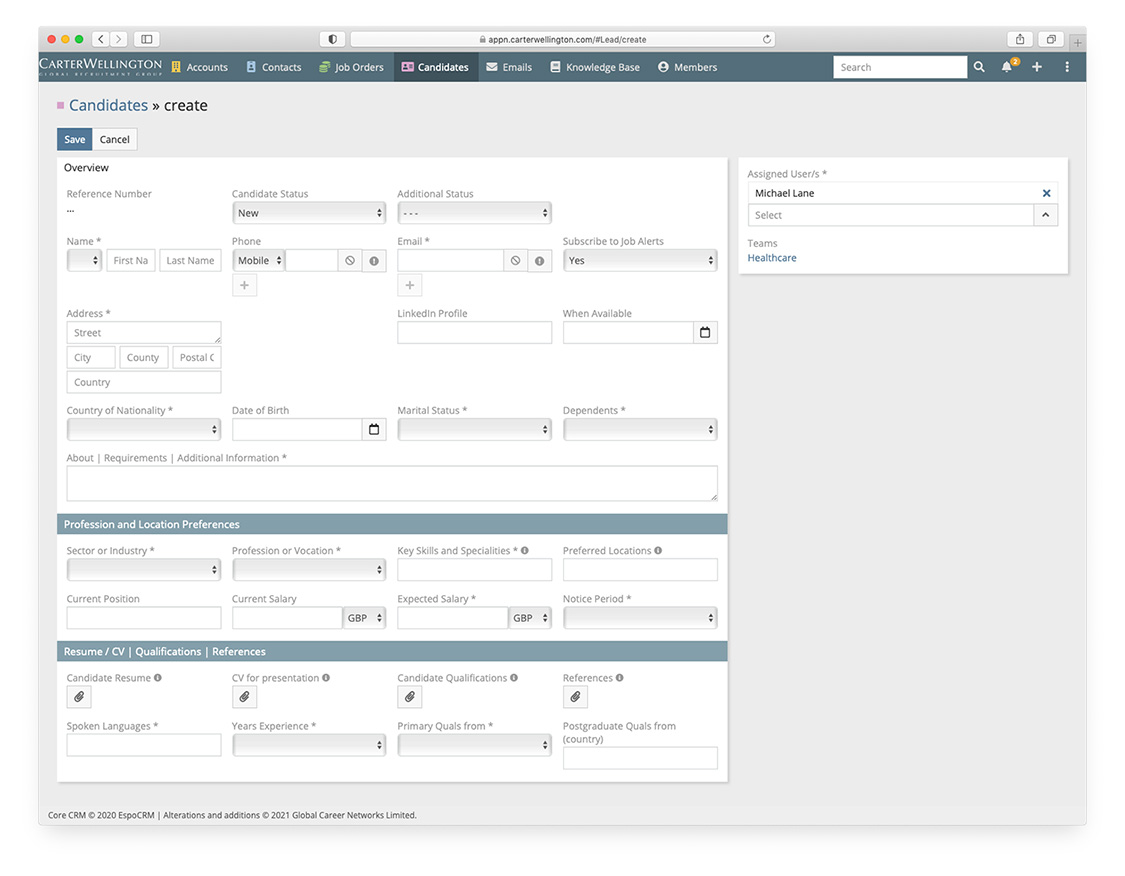
Choose + Create Candidate in the top right and complete as much information as possible. You will be presented with the following screen ready for you to create your candidate.
Note:
- You can use the About | Requirements | Additional Information field to enter information about candidate’s requirements or information gathered during your interview with them.
- Field Tags are important – there are pre-set values – a list that continues to grow so if you have a suggestion please make a note on the candidate file once completed
- Candidate Resume: click on the paper clip to upload your candidates CV
- Languages are pre-set values and cover most of the languages our candidates are likely to speak but there will always be new ones, so please drop [email protected] a message if you need a language added
IMPORTANT: About the CV
The CV should be detailed and contain full contact details including telephone and email address.
Once you have completed as much information as you have available, choose Save.
Please Note:
While not all fields are set as mandatory, it is expected that you will complete the file with all information available to you. Failure to do so will slow processing and may result in your candidate being rejected as not all information is to hand.
While not all fields are set as mandatory, it is expected that you will complete the file with all information available to you. Failure to do so will slow processing and may result in your candidate being rejected as not all information is to hand.
Your newly created candidate will be automatically assigned to you and will remain visible only to you and your Business Development Division Manager. Candidates you create are not visible to other Recruitment Partners.

Please Note:
Please ensure that the candidate has been assigned to a Team (top right information box beneath the Assigned User.
Complete Professional and Location Preferences to the best of your knowledge, as well as Primary Quals and Postgraduate Quals, as these fields are used by our AI matching algorithm to locate suitable candidates for newly posted job orders
Please ensure that the candidate has been assigned to a Team (top right information box beneath the Assigned User.
Complete Professional and Location Preferences to the best of your knowledge, as well as Primary Quals and Postgraduate Quals, as these fields are used by our AI matching algorithm to locate suitable candidates for newly posted job orders